When a computer displays “HDD not installed,” it usually means the system cannot detect its internal hard disk drive. That can be alarming, especially when the computer holds family photos, tax documents, school projects, or the only copy of an important file. The message does not automatically mean the drive is destroyed. A loose cable, disabled storage setting, failed drive, or outdated firmware can produce the same result.
Before you buy a replacement computer, slow the situation down. Write down the exact message, note what happened immediately before it appeared, and avoid repeatedly forcing the computer to restart. If the drive is making clicking, grinding, or repeated spin-up sounds, shut it down and focus on data recovery rather than more troubleshooting.
What “HDD not installed” actually means
The message usually appears before Windows or another operating system loads. The computer’s firmware, often called BIOS or UEFI, checks for storage devices during startup. If it does not see the expected drive, it cannot hand the boot process over to Windows. That is why you may see the warning even when the computer’s screen, keyboard, and charging system work normally.
On a newer laptop, the storage device may be a solid-state drive rather than a traditional HDD. Manufacturers sometimes use broad wording in diagnostic screens, so an “HDD not installed” notice can refer to an SSD or another internal storage module. The useful question is not whether the label is technically precise. It is whether the firmware detects any internal storage at all.
A recent drop, battery replacement, repair, liquid exposure, or operating system update can provide an important clue. If nothing changed, gradual drive failure becomes more plausible. If the computer was recently opened, a connector or storage module that was not fully seated deserves attention first.

Start with the safest checks
First, disconnect USB drives, memory cards, docking stations, and other accessories. A computer can occasionally try to boot from an external device or become confused by a damaged USB drive. Turn it off completely, unplug the charger, wait about 30 seconds, and start it again with only the charger connected.
Next, enter the BIOS or UEFI screen. The key varies by manufacturer, but common choices include F2, F10, Delete, and Esc. Many systems show the correct key briefly during startup. Look under menus labeled Storage, System Information, Drive Information, or Boot. Do not change settings casually; take a photo of the original screen if you are unsure.
If the internal drive appears by model number and capacity, the hardware connection may be working. The problem could instead involve boot order, a damaged operating system, or a corrupted boot record. If the drive does not appear anywhere, Windows repair tools will not solve the immediate problem because the computer is not seeing the storage device at the firmware level.
When the message says HDD not installed but the drive is visible in BIOS, save important files as soon as possible. Use a Windows recovery drive or a trusted technician if Windows will not start. Avoid formatting the disk or reinstalling Windows until you know whether the files have been backed up.
Check connections only if you can do so safely
A desktop computer makes this step relatively straightforward. Shut it down, unplug the power cable, and press the power button once to discharge remaining power. With the side panel removed, check that the SATA data cable and SATA power cable are firmly connected. A loose cable can cost nothing to fix, while a replacement internal drive may cost $40 to $150 depending on capacity and type.
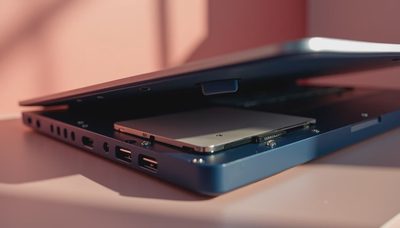
A laptop is less forgiving. Some models use a removable 2.5-inch drive connected by a small cable or bracket. Others use an M.2 SSD that slides into a slot and is held by a tiny screw. Opening the case can affect warranty coverage, damage clips, or create static electricity problems. If the computer belongs to a child’s school setup or contains irreplaceable files, professional service is often the sensible choice.
Do not repeatedly reseat a drive that is clicking or disappearing during use. Intermittent detection can be a warning that the drive is failing. If the files matter, connect the drive to another computer with a compatible adapter only when you understand the risk. A recovery shop can often create a sector-by-sector copy, but successful recovery is never guaranteed and can cost several hundred dollars or more.
When HDD not installed points to a failed drive
A drive that is absent from BIOS after a careful connection check is likely disconnected, incompatible, or failed. Test the simplest explanation first: confirm that the drive receives power, inspect the cable, and check whether the manufacturer’s diagnostic utility recognizes it. In a desktop, trying a known-good SATA cable can separate a $10 cable problem from a drive problem.
If the drive appears intermittently, copy the most valuable files first rather than starting with a full cleanup. Family photos, financial records, password-manager emergency information, and medical documents should take priority over downloaded movies or old installers. Do not use disk-cleaning utilities, defragmentation, or repair commands on a failing drive unless you have a verified backup.
A replacement SSD is usually a worthwhile upgrade for an older computer. A basic 500GB SATA SSD commonly costs around $35 to $60, while a 1TB model often falls near $55 to $100. Installation and cloning may add $50 to $200 through a local repair shop. The computer may feel dramatically faster, but the replacement does not restore files that were never copied from the old drive.

BIOS settings and boot problems
Sometimes HDD not installed appears after a BIOS reset or a battery failure. In that case, the storage controller mode may have changed, or the boot order may point to the wrong device. Common controller choices include AHCI and RAID, but switching between them without preparation can prevent Windows from starting. Record the current setting before changing anything.
Secure Boot, Legacy Boot, and UEFI options can also affect startup, particularly after a motherboard replacement or major repair. These settings are not interchangeable troubleshooting buttons. If the drive is visible but the system reports that no boot device exists, the safest path is to use the manufacturer’s recovery instructions or have a technician inspect the boot configuration.
Do not confuse a missing operating system with a missing drive. A computer may detect the disk perfectly while reporting “operating system not found.” That points toward damaged boot files, an empty replacement disk, or an incorrect boot entry. The remedy is different from a disk that is completely absent from BIOS.
Build a routine so the problem is smaller next time
The best response to HDD not installed is preparation before the warning appears. Keep at least two copies of irreplaceable files, with one copy stored outside the computer. A practical household setup might use automatic cloud backup for documents and phone photos, plus a USB hard drive that connects weekly for a second copy. Disconnect that backup when it is not being used so ransomware or accidental deletion cannot reach every copy.
Check the backup by opening several files, not just by trusting a green “complete” notification. Once a month, restore a photo and a document to a temporary folder. Keep recovery keys, administrator passwords, and device purchase information in a secure password manager. These small habits reduce the pressure to make risky repairs during a busy school morning.
If the warning appears on a work or school computer, contact the organization’s support team before opening the case. If it appears on a personal computer with valuable files, prioritize preservation over speed. Before you buy it, make sure you can live with it; the same principle applies to storage. Count the setup time, the backup routine, and the number of times someone has to fix it. A modest SSD and dependable backup plan usually create a calmer household than an expensive computer with one unprotected drive.


No letters yet — be the first guest to write.