Seeing hard disk drive not installed on a laptop or desktop is unsettling, especially when the computer holds school projects, family photos, tax records, or the only copy of a saved game. The message usually means the computer cannot detect its internal storage, not necessarily that every file is gone. A loose connection, failed drive, incorrect BIOS setting, or damaged operating system can produce similar symptoms.
The safest approach is to slow down. Do not repeatedly force the computer to start, reinstall Windows, or format anything until you understand whether the drive is visible. The goal is to separate a connection problem from a failing storage device, then protect the household data before spending money on repairs.
What the message actually means
A computer checks for a storage device before loading Windows or another operating system. If the firmware cannot find that device, it may display hard disk drive not installed, no boot device found, or a similar warning. On newer computers, the storage may be an M.2 NVMe solid-state drive rather than a traditional spinning hard disk, but manufacturers sometimes use older wording for all internal storage.
This message does not automatically mean the drive is physically missing. A desktop may have a loose SATA data cable or power cable. A laptop can develop a poor connection after a drop or repair. A BIOS update, reset, or changed storage setting can also prevent detection. If the drive appears in BIOS but Windows will not load, the problem may involve the boot files or operating system instead of the hardware itself.
Take a photo of the exact error before changing settings. Write down the computer brand, model, and whether the problem started after a fall, battery drain, update, or repair. Those details can save time when speaking with a repair shop.
Check BIOS or UEFI before opening anything
BIOS or UEFI is the low-level setup screen that runs before Windows. To enter it, restart the computer and tap the setup key shown on screen. Common keys include F2, Delete, Esc, and F10, although the correct key depends on the manufacturer. Dell, HP, Lenovo, Acer, ASUS, and custom desktop builders use different startup menus.
Look for a page named Storage, Information, Boot, or System Configuration. The internal drive may appear by brand and model, such as Samsung, Western Digital, Crucial, Kingston, or SK hynix. If the drive is listed with a reasonable capacity, the hardware is at least communicating with the computer. Do not change random boot, Secure Boot, or storage-controller settings just to make the warning disappear.
If hard disk drive not installed appears but the drive is visible in BIOS, shut down fully and disconnect external USB drives, memory cards, and docking stations. A computer can occasionally try to boot from the wrong device. Then restart and check whether the normal operating system loads. If it does, copy important files immediately and create a proper backup rather than assuming the problem has permanently resolved.
Inspect cables and physical connections
For a desktop, turn off the computer, unplug it, and hold the power button for several seconds. Remove the side panel only if you are comfortable working inside a powered-down PC. Confirm that both ends of the SATA data cable are firmly connected and that the drive has power from the power supply. A replacement SATA cable costs roughly $5 to $15, making it a sensible test before buying a new drive.
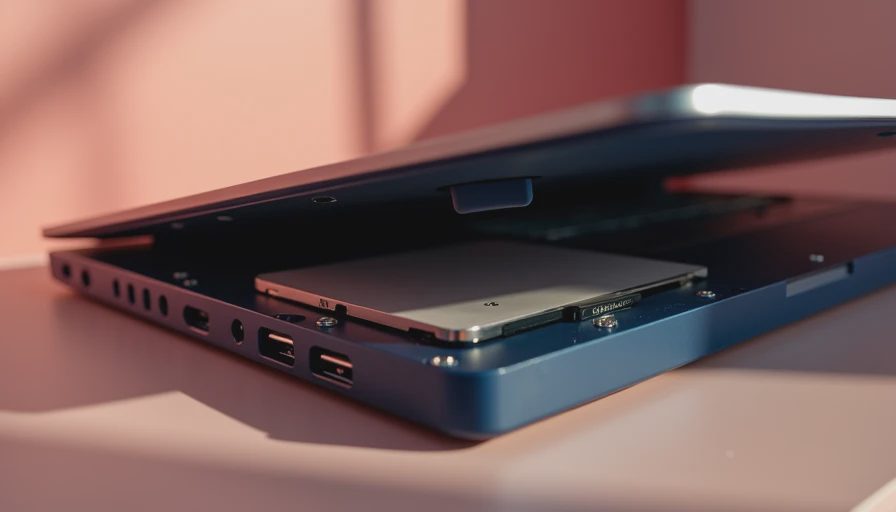
For a laptop, do not open the case casually if it is under warranty or if the battery is swollen. Some models use a removable 2.5-inch drive, while others use a small M.2 card secured by one screw. A loose M.2 drive can cause hard disk drive not installed, but reseating it requires the correct screwdriver and careful handling. A repair shop often charges around $75 to $150 for a basic diagnostic, which can be cheaper than damaging a connector during a rushed family repair.
Never shake, tap, or freeze a clicking hard drive. Strange clicking, grinding, repeated spin-up sounds, or a drive that disappears during use indicate possible mechanical failure. Disconnect it and consider professional data recovery if the files are irreplaceable.

When the drive is detected but Windows will not start
A drive that appears in BIOS but produces an operating-system error may have damaged boot information, corrupted system files, or a failing storage surface. Start with the computer maker's recovery environment or a Windows installation USB, but choose repair options before reset or installation options. “Startup Repair” can sometimes restore boot files without deleting personal documents.
If you reach Windows even briefly, copy documents, pictures, browser exports, and desktop files to an external drive or a trusted cloud service. A backup is more useful when it has been opened and checked from another device. Do not consider a single copy in OneDrive, Google Drive, iCloud, or Dropbox complete until synchronization has finished and the files are accessible online.
If hard disk drive not installed returns after intermittent freezes or very slow file access, treat the drive as unreliable even if a repair tool temporarily fixes it. Storage failures often become more frequent before total loss. Replace the device after the data is safe, rather than using a fragile drive for another school year.
Deciding between repair and replacement
Repair makes sense when the drive is healthy and the cause is a cable, connector, or configuration issue. It also makes sense for a relatively new computer with a replaceable SSD. A basic SATA SSD often costs about $35 to $100, while larger or specialized NVMe models can cost more. A technician can clone a readable drive to a replacement, preserving the existing installation in many cases.
Replacement is the better household decision when the computer is already slow, has a weak battery, lacks security updates, or uses an older mechanical drive. Spending $150 on diagnosis and parts for a ten-year-old family laptop may not solve the next problem. Before buying, check memory, operating-system support, ports, repair access, and whether the family can move files and accounts easily.
If the warning appears on a work computer, school-managed device, or machine containing sensitive records, contact the administrator before opening it. Device encryption can make recovery procedures more complicated, and an organization may have a specific backup or warranty process.
A calmer household recovery routine
After resolving hard disk drive not installed, create a routine that does not depend on memory during a crisis. Keep one automatic cloud backup for active documents and one local backup on an external drive. Connect the local drive regularly, let the backup finish, and disconnect it afterward so ransomware or a power event cannot affect every copy at once.
Use a simple folder structure for family records, photos, and school work. Keep recovery keys, purchase details, and important passwords in a reputable password manager rather than in a text file on the computer. Once a month, open several backed-up files from the external drive or cloud account. A backup that cannot be restored is only a comforting icon.
Before you buy it, make sure you can live with it. That applies to a replacement computer as much as to a new smart-home device. Count setup time, repair access, backup cost, and the number of times someone has to fix it. If hard disk drive not installed is the first serious warning from an aging machine, use the moment to build a less fragile family system instead of simply returning to the old routine.



No letters yet — be the first guest to write.