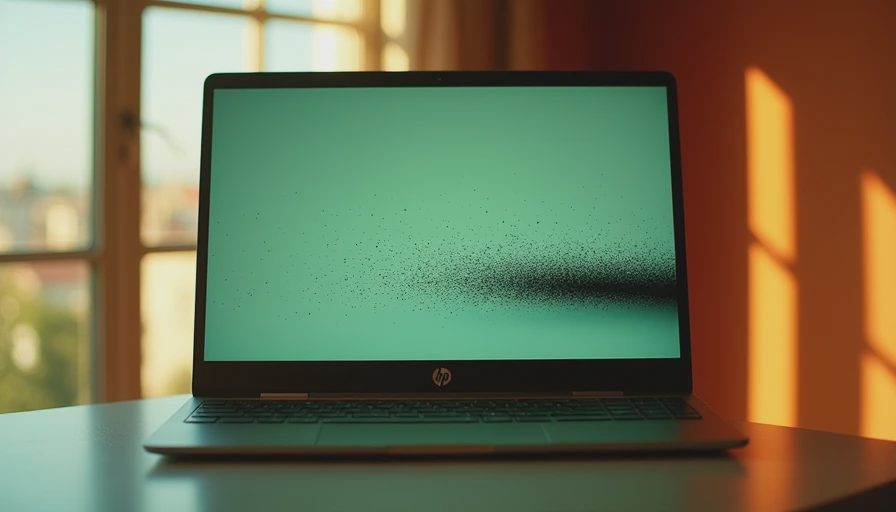
Finding black spots on laptop screen HP can turn a normal school morning or workday into a frustrating troubleshooting session. A dark mark might be a stuck pixel, dust under the display layer, pressure damage, or a cracked LCD panel. Those causes look similar at first, but they require very different solutions. Before you buy replacement parts or start pressing on the screen, identify what kind of problem you are actually seeing.
The good news is that a small spot does not always mean the entire HP laptop is failing. The less encouraging news is that physical display damage usually does not improve on its own. A few careful tests can tell you whether software, the screen cable, or the panel itself is responsible.
What black spots on laptop screen HP usually mean
A true black spot is often a group of pixels that no longer produces light. If it stays in exactly the same location while the image changes, the panel is the leading suspect. A single dead pixel can look like a tiny dot. Several failed pixels can form a visible speck or irregular patch.
A spreading dark blotch usually points to pressure or impact damage. For example, a laptop squeezed inside a backpack, closed with a pen on the keyboard, or dropped onto a desk can damage the liquid crystal display beneath the glass. The outside surface may look perfectly smooth while the internal panel has bruising. These marks often resemble a dark ink stain and can grow after more pressure is applied.
Dust or debris beneath a screen bezel creates a different pattern. It may look sharp, irregular, and slightly raised rather than cloudy. If the mark moves when the bezel is gently inspected by a technician, debris is possible, but opening the display assembly can create more problems. Do not insert a card or tool around the screen just to chase a speck.
A damaged display cable can create lines, flickering, or a screen that changes when the lid moves. It is less likely to create one fixed black spot, although display symptoms can overlap. That is why a second-screen test is useful before ordering a panel.

Safe tests to identify the problem
Start by shutting down the laptop completely, then restart it. Watch the HP logo or startup screen before Windows loads. If the black spot is visible on the HP logo, it is probably not caused by a Windows setting or an application. Software cannot usually repair a physically dead section of an LCD panel.
Next, connect the computer to a television or monitor through HDMI, USB-C, or another supported video connection. Press the appropriate display shortcut, often the Windows key plus P, and choose Duplicate or Second screen only. If the external monitor looks normal while the built-in display still shows black spots on laptop screen HP, the computer's graphics system is probably working and the internal display deserves attention.
Take a screenshot and view that image on another device. A spot that appears in the screenshot may be caused by graphics software, a browser extension, or a rendering issue. A spot that does not appear in the screenshot but remains visible to your eyes is more likely physical screen damage.
Use a plain white, black, red, green, and blue background to inspect the panel. You can open simple color images in a browser rather than installing an unknown diagnostic utility. A dead pixel often stays black across every color. A stuck pixel may remain red, green, or blue. A cloudy patch that changes subtly with the background suggests pressure damage or backlight problems.
Do not rub the mark, press it with a finger, or use a hair dryer. These popular internet fixes can spread liquid crystal damage, remove the screen coating, or turn a repairable issue into a complete panel failure.
Repair choices and realistic costs
If the tests confirm a failed panel, the standard repair is screen replacement. Parts for common HP Pavilion, Envy, and Chromebook models often cost roughly $60 to $180, while a shop may charge another $80 to $200 for labor. Touchscreen assemblies, high-resolution panels, and unusual hinges can cost more. A business-class HP EliteBook may have a more expensive display but can also be easier to service, depending on the generation.
The exact model number matters. “HP Pavilion 15” is not specific enough because several versions can use different connectors, mounting points, resolutions, and refresh rates. Look for the product label on the underside or open HP Support Assistant and record the full product name. Confirm the panel connector and mounting style before buying anything.
If the laptop is under warranty, check the warranty terms before opening the display. A manufacturing defect may be covered, but accidental pressure or impact damage commonly is not. A protection plan from a retailer or school district can have separate rules. Photograph the screen, the laptop exterior, and the model label before contacting support.
When the laptop is five or six years old, compare the repair estimate with replacement value. Spending $200 on a panel for a machine with a tired battery, a slow hard drive, and a damaged hinge may not be sensible. Spending $120 on a screen for a newer HP laptop with good battery life can be reasonable, especially if the family already has the software and accessories set up.
When black spots on laptop screen HP are not a screen problem
Sometimes the screen is fine and the apparent spot comes from the operating system or graphics driver. Update Windows through Settings, then install the display driver recommended for the exact HP model. Avoid random driver sites; a mismatched driver can create flicker, incorrect resolution, or sleep-wake problems.
Check display scaling and resolution as well. An incorrect resolution normally causes blur rather than black dots, but a graphics glitch can produce blocks or artifacts. If the problem appears only in one application, update that application and test another browser or document. A video, game, or browser page can also contain a dark element that is mistaken for panel damage.
Run HP's built-in hardware diagnostics if available. These tools can help identify display, memory, and system failures, but they cannot restore pixels that have physically failed. If the laptop flickers when the lid moves, stop repeatedly opening and closing it. That pattern makes a loose or worn cable more plausible and deserves service before the cable or hinge causes additional damage.
A practical household decision process
For a school laptop needed tomorrow, connect an external monitor and back up important files first. A USB-C dock or inexpensive HDMI adapter can provide a temporary workstation while you decide on repair. If the built-in display is readable except for one tiny dot, the laptop may remain usable. If a dark patch covers text, grows quickly, or is paired with flickering, arrange service sooner.
Back up photos, school documents, browser data, and password-manager recovery information before any repair. Use OneDrive, Google Drive, an external drive, or another backup method the household already understands. A screen replacement should not erase data, but a repair appointment is a good time to protect against accidental loss.
For black spots on laptop screen HP, the simplest answer is usually diagnosis before replacement. Check the startup screen, compare an external monitor, test screenshots, and identify the complete model number. Then request two prices: one for the part and one for installed service. If the total is close to the cost of a dependable replacement laptop, put the money toward a machine that includes a fresh battery and warranty.
The demo is not the daily experience, and a repaired screen is only worthwhile when the rest of the computer remains dependable. Before you buy it, make sure you can live with it; before you repair it, make sure the laptop can keep up with the family routine.

No letters yet — be the first guest to write.