When a family computer suddenly says “no boot device found,” the problem feels bigger than it is. A dell hard disk not detected message can point to a loose connection, a BIOS setting, a failed drive, or simply a damaged Windows installation. The important first step is not clicking through random fixes. Protect the family photos, school files, and tax documents before you make changes.
This guide is written for ordinary Dell laptops and desktops, including Inspiron, Latitude, Vostro, XPS, and OptiPlex models. You do not need to be a professional technician, but you should slow down whenever a step could erase data.
Start with the clues on the screen
Write down the exact message and when it appears. “No boot device found” is different from “hard drive not installed,” and both are different from Windows starting with a repair screen. The timing provides a useful map.
If the computer became slow for several days, froze while saving files, or produced clicking sounds, suspect a mechanical hard drive that is wearing out. A solid-state drive usually fails more quietly, with freezing, missing files, or sudden failure. If the computer was recently dropped, repaired, or moved between rooms, a connection problem becomes more likely.
Shut the Dell down completely. Disconnect the charger and all USB devices, memory cards, docks, and external drives. A faulty USB device can occasionally interfere with startup. Hold the power button for about 15 seconds after unplugging it, then reconnect only the charger and try again. Do not repeatedly restart a drive that is making unusual noises.
If Windows eventually opens, copy important files immediately to an external drive or a trusted cloud service. A backup is more valuable than another hour of troubleshooting.
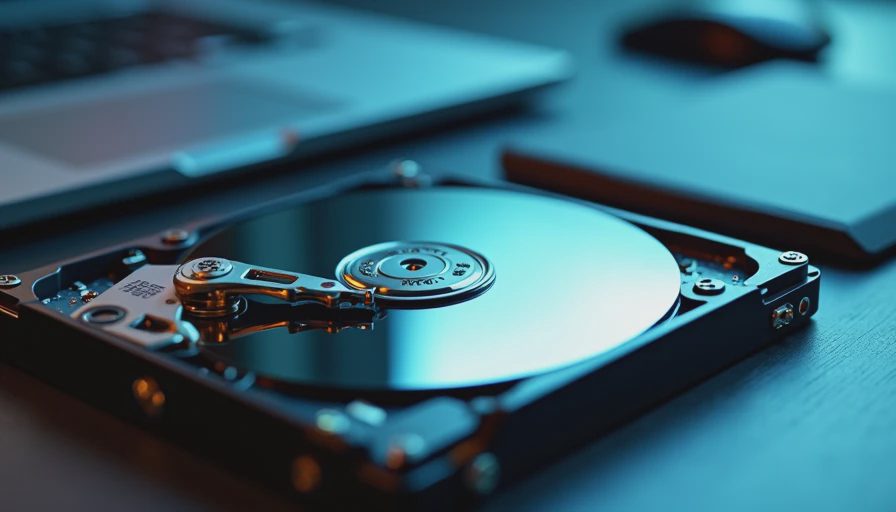
Check whether BIOS can see the drive
BIOS, or UEFI on newer systems, is the computer’s startup configuration screen. It can tell you whether the hardware is visible before Windows loads. Turn the Dell on and tap F2 repeatedly when the Dell logo appears. On some models, F12 opens a one-time boot menu with access to diagnostics.
Look for a section named Storage, System Information, Drives, or General. The wording differs by model. A listed drive might show a manufacturer name, a capacity such as 512 GB, or an identifier beginning with letters and numbers. If the drive appears there, the hardware connection is at least detectable, and the issue could involve boot order, Windows, or corrupted system files.
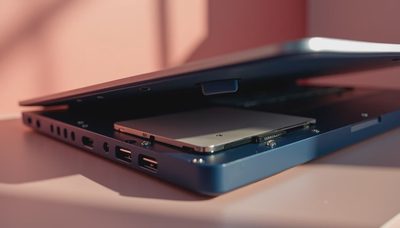
If the drive does not appear in BIOS at all, Windows repair commands will not solve the underlying problem. On a desktop, power off and unplug the machine before checking the SATA data cable and power cable. On a laptop, opening the bottom cover can void coverage or damage a small connector, so consult the model’s Dell service manual first.
A dell hard disk not detected problem that appears immediately after a drive upgrade may also involve compatibility or installation errors. Confirm that the replacement drive is seated fully and that the mounting bracket or adapter is the correct one.
Run Dell’s built-in hardware diagnostics
Restart and tap F12 at the Dell logo, then choose Diagnostics. The ePSA tool can test storage, memory, fans, and other components. Let the storage test finish rather than canceling it after a few minutes. Record any error code, validation number, and drive name shown on the screen. Those details are useful when contacting Dell support or a repair shop.
A failed short test usually justifies replacing the drive, but a passing test does not prove that every file is safe. Diagnostics can miss intermittent failures. If the drive is visible only sometimes, treat that behavior as a warning. A computer that works after three restarts is not repaired; it has given you a narrow window for backup.
For a dell hard disk not detected message, diagnostics also help separate a storage problem from a memory or motherboard problem. If the storage test passes but memory fails, focus there. If several unrelated components fail together, stop changing settings and get a hardware evaluation.
Do not initialize, format, or “repair” a drive that contains irreplaceable files unless you have a backup or a recovery plan. Those options can make later recovery more difficult.
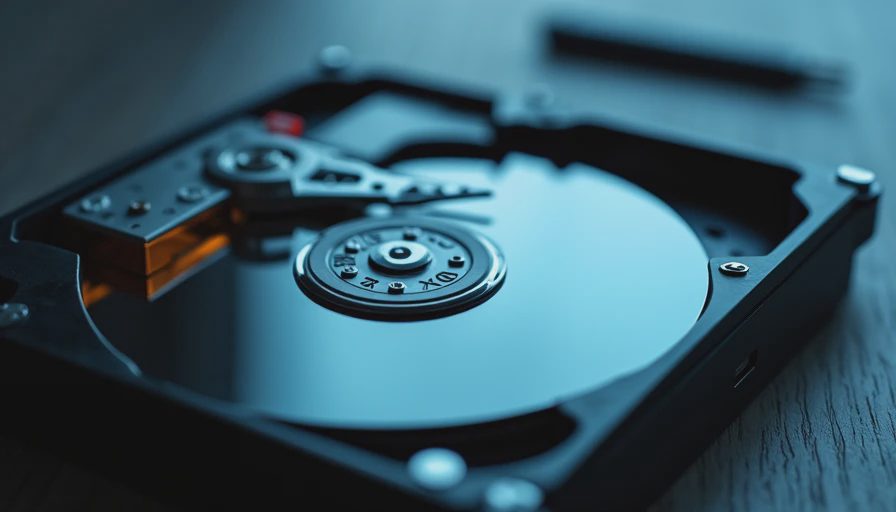
If the drive is visible but Windows will not start
When BIOS lists the drive, check the boot order. In the F2 setup screen, the Windows Boot Manager entry should normally be ahead of network boot or removable media. Avoid switching storage modes such as AHCI and RAID unless you know what the original installation used. Changing that setting can make an otherwise healthy Windows installation fail to boot.
From the F12 menu, look for Windows Boot Manager. If it is present, select it once. If Windows loads, back up files and inspect the drive’s health with Dell SupportAssist or a reputable drive utility. Uninstalling unnecessary startup programs and keeping sufficient free space can improve a struggling computer, but neither action repairs failing hardware.
If Windows shows Automatic Repair, allow one repair attempt. If it loops, use a Windows recovery USB or a qualified technician rather than guessing with command-line instructions. Commands that rebuild boot records can be useful, but using the wrong disk or partition can cause data loss.
A dell hard disk not detected message that changes into a Windows recovery screen often means the system can see the drive but cannot use its boot files. That is a different situation from a drive missing in BIOS, even though the symptoms look similar.
Decide whether repair or replacement makes sense
For an older Dell with a traditional spinning hard disk, a 500 GB or 1 TB SATA solid-state drive is often a practical replacement. Basic SSDs from Crucial, Samsung, or Western Digital commonly cost roughly $35 to $90, depending on capacity and sales. A compatible M.2 NVMe drive for a newer laptop may cost about $45 to $120. The drive is only part of the expense: a shop may charge $75 to $200 for installation and Windows setup.
Replacing a drive does not automatically restore your files. If the old drive is still readable, a technician can sometimes clone it. If it is failing, cloning may be risky, and professional data recovery can cost hundreds or thousands of dollars. That is why a $60 external backup drive can be a better household investment than waiting for a crisis.
Before buying anything, record the Dell model number, current drive type, storage capacity, and whether the computer uses a 2.5-inch SATA bay or an M.2 slot. “It fits” is not enough; the mounting screw, bracket, interface, and operating system setup all matter.
A calm household recovery checklist
Start by photographing error messages and writing down recent changes. Remove accessories and perform one full power reset. Enter BIOS and note whether the drive appears. Run F12 diagnostics and save every code. If the drive appears, back up files before changing boot settings. If it is absent, inspect connections only if you are comfortable and the model’s service instructions are clear.
If the files are important and the drive clicks, disappears intermittently, or becomes extremely slow, stop experimenting. A local repair professional with data-recovery experience is a better next step than repeated formatting attempts. If the data is already backed up, replacement is usually faster and less stressful.
A dell hard disk not detected issue is frustrating, but it does not need to become a family technology emergency. Use the computer’s own diagnostics, protect the data first, and replace the failing part when the evidence points there. Before you buy it, make sure you can live with the maintenance; the same principle applies before you try to repair it.

No letters yet — be the first guest to write.