If you are asking how do you factory reset a chromebook, you probably have a practical reason: the device is acting strangely, a child is getting a hand-me-down computer, or you are preparing to sell or return it. On a Chromebook, the factory reset process is called Powerwash. It removes local accounts, settings, apps, and files, then returns ChromeOS to its initial setup screen.
The reset itself is usually quick. The part that deserves attention is everything around it. Before you click the final confirmation, identify which files live only on the Chromebook, make sure you know the Google account passwords you will need afterward, and confirm that the device is not managed by a school or employer. A few minutes of preparation can prevent a lost school project or a frustrating evening of account recovery.
What a Chromebook factory reset removes
Powerwashing removes user accounts and data stored locally on the Chromebook. That includes files in the Downloads folder, locally saved photos, offline documents, Android app data, Linux development files, and personal settings. It also removes extensions and apps installed through Chrome Web Store or Google Play. The device will restart as though it has just come out of the box.
Files already synchronized with Google Drive normally remain in your account. Gmail, Google Photos, and cloud-based documents are also tied to your online account rather than the local Chromebook. However, synchronization is not a magic backup. A file that was downloaded, edited offline, or saved in a local folder may not have uploaded successfully.
Open the Files app and inspect Downloads, My files, Play files, and any Linux files before resetting. Copy important material to Google Drive, a USB flash drive, or another computer. If the Chromebook belongs to a child, check for downloaded worksheets, game saves, artwork, and photos. This is where family resets often go wrong: adults remember the account but forget the local folder.
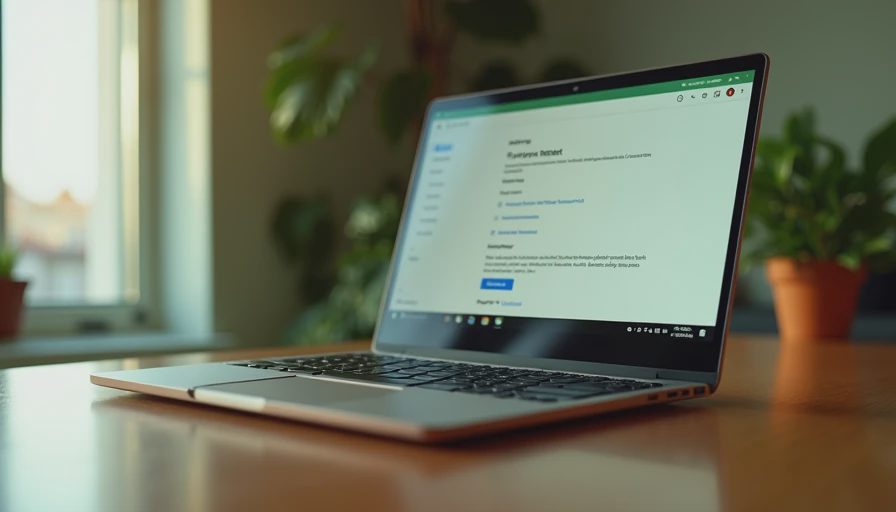
How do you factory reset a chromebook from Settings?
For a Chromebook that starts normally, the simplest method is through Settings. The exact menu wording can shift slightly between ChromeOS versions, but the path is generally consistent:
- Sign in to the Chromebook.
- Select the time in the lower-right corner.
- Select the Settings gear.
- Open Advanced, then choose Reset settings.
- Find Powerwash and select Reset.
- Read the warning, then choose Restart.
- Confirm Powerwash when prompted.
The Chromebook will reboot and display the reset confirmation. After you approve it, ChromeOS deletes local user data and restarts again. Do not close the lid or disconnect power while the process is running. A fully charged battery is useful, but plugging in the charger is better if you are resetting an older model.
This approach works well when the device is responsive and you can sign in. It is also the easiest method for a parent who wants to watch the process and verify that the Chromebook is ready for a new user. If the computer is frozen or will not reach Settings, use the recovery-style shortcut described below.
How do you factory reset a chromebook with a keyboard shortcut?
When ChromeOS will not load correctly, hold the Ctrl and Alt keys, then press the R key. Release the keys when the reset screen appears, and follow the prompts for Powerwash. On some devices, you may need to select Restart before the reset option becomes available.
This shortcut is helpful for a Chromebook stuck on a login screen, caught in a restart loop, or showing repeated profile errors. It does not repair physical damage, a failing battery, or a broken display. It also will not bypass ownership or administrative controls. If the Chromebook is enrolled by a school district or workplace, the organization may still control it after the reset.
If the shortcut does nothing, turn the Chromebook off completely. Then turn it on and try the shortcut again. For a device that cannot boot at all, ChromeOS Recovery is a different procedure. Recovery reinstalls the operating system from a USB drive or another Chromebook and is more involved than a normal Powerwash.
Before you reset: a five-minute household checklist
Before deciding how do you factory reset a chromebook, complete these checks:
- Open Google Drive in a browser and confirm important files appear there.
- Check Downloads and copy anything important to cloud storage or USB media.
- Verify the email address and password for the next user.
- Remove Bluetooth accessories, SD cards, and USB drives.
- Disconnect the Chromebook from personal services if you are selling it.
- Confirm whether the device is school-managed or work-managed.
- Keep the charger nearby for the setup process.
If you are handing the Chromebook to a child, do not sign in with your own Google account just to make setup faster. Let the child use their supervised or school-approved account where appropriate. Separating profiles keeps browsing history, saved passwords, extensions, and suggestions from becoming mixed together.
For a sale, Powerwash is important because it removes local access to your account. You should still review your Google account security page afterward and remove the old Chromebook from the list of familiar devices if it no longer belongs to you. Do not rely on deleting individual files; that leaves the rest of the profile in place.

What to do after Powerwash
After the reset, the Chromebook shows the welcome screen. Choose the language, keyboard layout, and Wi-Fi network, then sign in with the intended Google account. ChromeOS will check for updates and restore compatible settings, extensions, and files associated with that account. The first synchronization can take several minutes, especially on a busy family network.
Install only the apps the user actually needs. A school Chromebook may need Google Classroom, Microsoft 365, Zoom, or a printer extension, while a shared household device may need a password manager and a browser profile. Resist reinstalling every old extension immediately. A clean reset is a useful opportunity to remove clutter, reduce notifications, and make the computer easier for a child to navigate.
Check privacy and family settings before returning the Chromebook to daily use. Review Google account recovery methods, screen-lock preferences, guest browsing, location permissions, and Android app permissions. If the device is for a younger user, configure parental controls through the appropriate Google family tools rather than sharing an adult password.
When a reset is not the right fix
A factory reset can solve corrupted profiles, persistent settings problems, and a messy handoff. It cannot fix a cracked screen, a worn-out battery, unreliable Wi-Fi hardware, or a Chromebook that is simply too old for current software support. If the device becomes slow only when many browser tabs are open, deleting local data may not change much.
Before resetting, try restarting the Chromebook, installing pending updates, removing an unfamiliar extension, and checking available storage. If only one user profile has trouble, signing out and testing another profile can reveal whether the issue is account-specific. For a managed school device, contact the administrator instead of attempting to remove management.
The practical answer to how do you factory reset a chromebook is therefore simple: back up local files, use Powerwash from Settings when possible, use the keyboard shortcut when necessary, and complete setup with the correct account. Count the setup time and the files that need checking, not just the number of clicks. A reset is most useful when it restores a dependable household routine rather than creating another avoidable technology chore.

No letters yet — be the first guest to write.