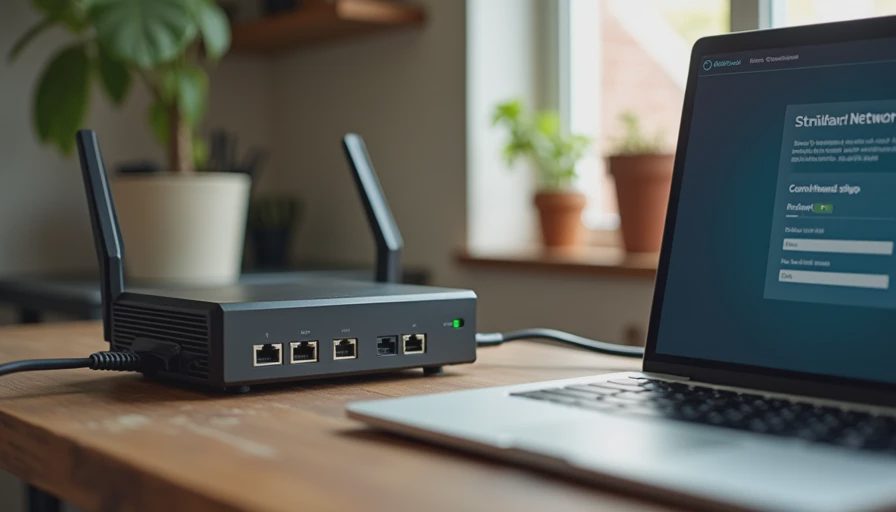
Most home network advice still treats the house like a single laptop and a couple of phones. Real households look different. There are work devices, school tablets, streaming boxes, smart speakers, cameras, sensors, robot vacuums, guest phones, and the occasional relative who needs the Wi-Fi password for three days. When everything shares one flat network, small problems compound: kids’ devices compete with video calls, smart plugs become entry points, and guests get access to more than they should.
A practical layout separates traffic by purpose without turning the house into an enterprise project. The goal is reliability, basic security, and fewer daily interruptions—not perfection.
The Core Principle: Separate What Needs Separating
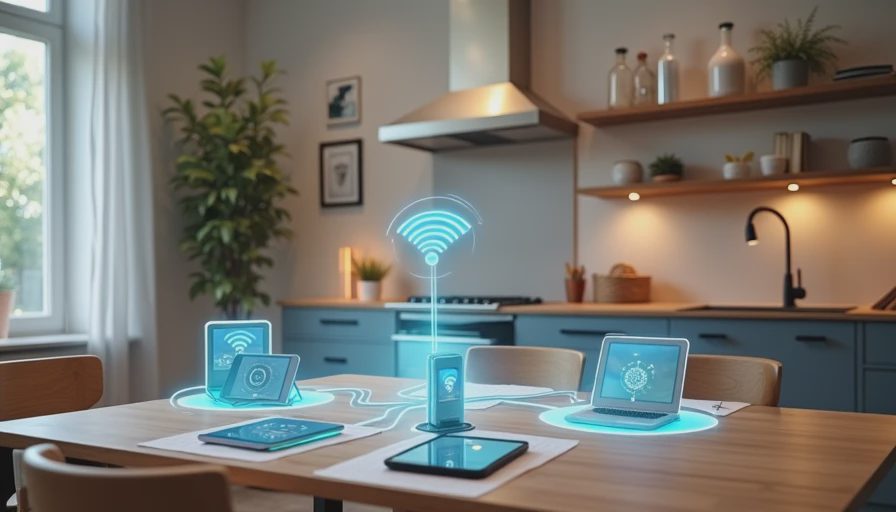
A single network is simple to set up and increasingly hard to live with. Three logical segments cover most family needs:
Main / Trusted — phones, computers, tablets, and devices that handle personal data or work.
Guest — visitors and temporary devices.
IoT / Smart Devices — plugs, bulbs, sensors, cameras, appliances, and anything that only needs internet access and local control.
This separation reduces the blast radius when a cheap sensor gets compromised, keeps guest traffic away from family files, and makes troubleshooting clearer. You do not need advanced networking knowledge to achieve most of the benefit.
What “Good Enough” Looks Like
Main devices stay responsive during evening streaming and homework hours.
Guests can get online without receiving the primary password.
Smart devices cannot freely talk to phones and computers unless you explicitly allow it.
Admin access to the router is limited and documented.
The layout still works when someone is tired and just wants the lights to turn on.
Recommended Layout for Most Households
Start with what your current router or mesh system actually supports. Many modern consumer systems (including several popular mesh kits) offer a guest network and basic device isolation or a separate IoT/SSID option. Use those features before buying new hardware.
1. Main Network (Trusted Devices)
This is the network for people and their personal devices.
Include:
Phones, tablets, and computers used by household members
Work laptops that need reliable access
Printers and shared storage that family members regularly use
Settings priorities:
Strong unique password
WPA3 if available, otherwise WPA2
Automatic updates enabled on the router
Admin password changed from the default and stored in the household password manager
Keep the number of devices here intentional. Not every gadget belongs on the trusted network.
2. Guest Network
A guest network is one of the highest-value, lowest-effort improvements most homes can make.
Include:
Visitor phones and tablets
Temporary devices (contractors, relatives, kids’ friends)
Any device you do not fully trust or plan to keep long-term
Key settings:
Separate password from the main network
Client isolation enabled if the router offers it (guests cannot see each other or local devices)
Bandwidth limits optional but useful during heavy usage periods
Schedule or easy on/off control if available
Give guests the guest password. Do not share the main one. Rotate the guest password periodically or after a large gathering if that feels proportionate to your risk tolerance.
3. IoT / Smart Device Network
Smart devices are convenient and often poorly secured. Isolating them is the single best default for most families.
Include:
Smart bulbs, plugs, switches, and sensors
Robot vacuums, smart speakers, displays, and cameras
Appliances with Wi-Fi (fridges, washers, thermostats, etc.)
Any device that only needs internet access and does not store personal files
Practical approach:
Create a separate SSID if your system supports it
Use a distinct password
Enable AP/client isolation or “IoT network” features when available
Avoid giving these devices access to the main network unless a specific integration requires it
Some ecosystems (certain cameras, voice assistants, or local-control hubs) work more smoothly when they can see other devices. In those cases, place only the necessary hubs or controllers on the main network and keep the bulk of the sensors and endpoints isolated. Document the exception so you remember why it exists.
Hardware Reality Check
You do not need enterprise gear. Most families can improve their layout with what they already own or with a modest mesh upgrade.
When Your Current Router Is Enough
If your router or mesh system already offers:
A guest network
Basic device isolation or a second SSID
Reasonable coverage for your floor plan
…then configure the three segments and stop. Complexity has a maintenance cost.
When an Upgrade Makes Sense
Consider new hardware if you regularly experience:
Dead zones that affect work or school video calls
Frequent disconnects among smart devices
A router more than 4–5 years old with no guest or isolation features
A growing number of devices that the current system handles poorly
Look for systems that clearly support multiple SSIDs or a dedicated IoT/guest mode, offer straightforward parental controls if you need them, and have a track record of ongoing firmware updates. Prefer setups that can be administered by more than one adult in the household.
Addressing Common Family Constraints
Kids’ Devices
School tablets and phones can live on the main network if they are supervised, or on a separate kids segment if your router supports time limits and content filters cleanly. The important part is consistency: the rules should not depend on manually changing Wi-Fi passwords every evening.
Work-from-Home Needs
If someone regularly takes video calls or handles sensitive files, prioritize stability on the main network. Wired connections for primary work machines remain the most reliable option when the floor plan allows it. Reserve wireless capacity for devices that truly need mobility.
Smart Home Hubs and Local Control
If you use a local hub (Home Assistant, certain proprietary hubs, or a dedicated controller), place the hub where it can reach the devices it manages. In many cases the hub sits on the main network while the endpoints stay on the IoT segment, with explicit allow rules only where required. Test one automation fully after any change before expanding.
Visitors and Temporary Access
A guest network removes the social friction of sharing the main password and the security downside of leaving it unchanged for years. If your system supports a temporary QR code or timed access, use it for short stays.
Implementation Steps (Keep It Lightweight)
Inventory first. Know what is currently connected (see the household technology inventory template).
Enable the guest network and move visitor devices there immediately.
Create or enable an IoT/smart SSID and migrate plugs, bulbs, sensors, and similar devices.
Test critical functions — lights, locks, cameras, printers, and work video — after each major move.
Document the passwords and admin access in the household password manager. Note which adult can log into the router.
Set a simple review trigger — after any major device addition, a big software update, or once a year.
Avoid redesigning the entire network in one evening. Move categories in stages so you can isolate the cause if something breaks.
What Success Looks Like
A practical family network layout produces quieter days:
Fewer “the internet is broken” interruptions during homework or meetings.
Guests get online without gaining access to shared drives or cameras.
A compromised smart plug does not automatically see every phone and laptop.
The next device purchase can be evaluated against a known, stable foundation instead of an unknown mess.
Perfect segmentation is less important than clear separation and documented access. Start with the three segments, use the features your current hardware already provides, and only add complexity when a real household problem demands it.
Before you buy another extender or mesh node, make sure the layout you already have is intentional—and that you can live with it on an ordinary Tuesday.

No letters yet — be the first guest to write.