Safe computing home networking is less about buying the most expensive router and more about building a household system that stays secure on a busy Tuesday. Your family may have phones, laptops, game consoles, cameras, streaming boxes, printers, and smart speakers connected at once. Each device adds convenience, but it also adds another account, update schedule, and possible weak point.
The goal is not to make technology feel like a corporate IT department. It is to create sensible defaults that protect personal information, keep children from stumbling into unsuitable content, and make troubleshooting less painful. Before you buy it, make sure you can live with it. That principle applies to a mesh Wi-Fi kit, parental-control app, password manager, and every subscription attached to your network.
Start with a clear map of the household network
The first step in safe computing home networking is knowing what is connected. Open your router app and review the device list. Give familiar devices useful names such as Living Room Roku, Maya Laptop, or Garage Camera. Unknown entries do not automatically mean an intruder; a phone, printer, or streaming device may appear under a manufacturer name. Still, investigate anything you cannot identify.
Make a simple inventory in a note or spreadsheet. Record the device, owner, location, login email, and whether it needs internet access all day. A smart light bulb probably does not need access to your laptop. A child’s tablet may need Wi-Fi but not access to shared files. This small separation makes future decisions much easier.
Your internet provider’s gateway may be enough for a small apartment, while a larger home with dead zones may benefit from a mesh system such as eero, Google Nest WiFi Pro, or TP-Link Deco. Coverage matters, but so does administration. A system with a clear app, automatic firmware updates, and readable alerts is often more valuable than a router with advanced features nobody maintains.
Create strong boundaries without making family life miserable
Good safe computing home networking uses separate access for different kinds of devices. If your router supports it, create a guest network for visitors and a dedicated network for smart-home equipment. Put cameras, plugs, thermostats, and inexpensive connected gadgets there rather than placing them beside computers containing tax documents or work files.
For children, network-level controls can help with bedtime schedules and obvious categories of unsafe content. However, they are not a substitute for device settings or conversation. Apple Screen Time, Google Family Link, Microsoft Family Safety, and console controls work at the account or device level, where they can apply more precise limits. A router schedule can pause a tablet at 9 p.m.; it usually cannot explain why a particular app is appropriate for homework but not for overnight use.
Avoid creating rules that require constant parental intervention. A schedule that pauses internet access every night is easier to maintain than manually removing a device from Wi-Fi. Give adults the administrative password, and use standard or child accounts for everyone else where the operating system supports them. This reduces accidental purchases, settings changes, and software installations.
Secure the router and every account around it
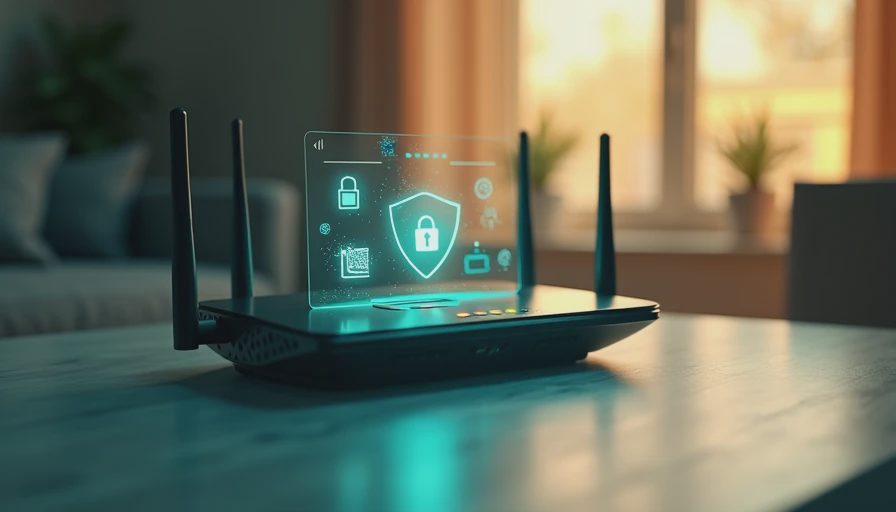
The router is the front door of your home network. Change the administrator username and password if the manufacturer permits it, and never reuse the password from your email or streaming account. Use a long, unique passphrase that other family members can still locate when they need to connect a new device.
Enable automatic firmware updates, WPA2 or WPA3 encryption, and a firewall. Disable remote administration unless you have a specific reason to manage the router from outside your home. Turn off outdated options such as WEP. If your router has a WPS button, consider disabling it after setup, especially if you do not use it.
Safe computing home networking also depends on the accounts that control the equipment. Protect your internet provider account, router app, Apple or Google account, and email with multifactor authentication. An authenticator app or security key is generally stronger than text messages, although any second factor is better than a password alone. Store recovery codes in a password manager or another secure location rather than on a sticky note beside the router.
Treat updates and backups as household routines
A secure network cannot repair an abandoned device. Turn on automatic updates for phones, computers, browsers, game consoles, and smart-home products whenever the option is reliable. Check older devices twice a year. A camera that no longer receives security updates should not be treated like a harmless light bulb if it records inside your home.
Backups deserve the same regular attention. Cloud storage can protect photos and school documents from a lost laptop, while an external drive gives you another copy without another monthly subscription. Important files should exist in more than one place. Test a backup by restoring one photo or document; a backup you have never successfully opened is only a hopeful setting.
For a practical family routine, choose one evening each month to review updates, remove unused apps, check connected devices, and confirm that important photos are syncing. Ten minutes of maintenance is easier than recovering from a compromised account or failed hard drive.

Make privacy settings understandable and useful
Privacy is not a single switch. Review what each device collects, who can access it, and how long information is retained. Smart speakers may store voice recordings, cameras may offer cloud history, and children’s apps may request location or contacts they do not need. Disable permissions that do not support the device’s main purpose.
Place cameras carefully. A front door or driveway camera has a different privacy profile from one aimed at a bedroom, playroom, or neighbor’s property. Use unique accounts for camera sharing and remove former users promptly. The same principle applies to shared calendars, family photo albums, and location services.
A password manager such as 1Password, Bitwarden, or Apple Passwords can reduce reused passwords across the household. Set up shared vaults for bills and streaming services, but keep personal work, health, and financial credentials separate. The best tool is the one everyone can use during a stressful moment, not the one with the longest feature list.
A simple monthly check before problems appear
Safe computing home networking works best when it becomes boring maintenance. Once a month, sign in to the router and scan the connected-device list. Remove old phones, former guests, and products you donated. Confirm that the guest and smart-device networks still have the intended names and passwords. Review parental controls after a child gets a new phone or changes schools.
Every three months, test one backup, review router and device updates, and check account recovery methods. Replace a router when it no longer receives security updates, cannot cover the home reliably, or forces you to use workarounds for basic controls. A $100 to $300 replacement can be reasonable when the old equipment creates hours of troubleshooting or leaves important devices unsupported.
The right setup will not eliminate every scam, outage, or forgotten password. It will limit the damage and make recovery faster. Start with an inventory, add sensible network separation, secure the administrator accounts, and establish a short maintenance habit. That is the useful version of safe computing home networking: protection that fits the way your family actually lives.

No letters yet — be the first guest to write.