
Most backup advice is written for people who already think like system administrators. It assumes comfort with redundant drives, versioning policies, and regular restore drills. Ordinary households need something different: a simple system that protects the files that would actually hurt to lose, and that still works when no one is thinking about backups.
The two categories that matter most for families are photos and documents. Everything else is usually replaceable or low-stakes. A practical backup system focuses on those, stays out of the way, and passes a basic real-world test: if a phone, laptop, or drive disappeared tomorrow, could the household recover the important things within a day?
That is the One-Day Disaster Test. It is more useful than any theoretical 3-2-1 diagram.
What Actually Needs Protecting
Not every file deserves the same effort. Spreading attention across every download and app data folder usually means the important things are protected less reliably.
High-Value Targets
Photos and videos — especially the years of family images that exist in only one place
Personal and family documents — tax records, identity scans, school files, medical PDFs, home-purchase paperwork, insurance policies
A small set of working files — current projects, household spreadsheets, password-manager emergency kits, or anything actively used and hard to recreate
Lower Priority for Most Households
Application settings and browser profiles
Old downloads and duplicated media
Most email (already stored on the provider’s servers)
Media libraries that can be re-ripped or re-downloaded
The system should make the high-value targets almost automatic and accept that everything else is best-effort.
The Simplest Reliable Structure
A household backup system only needs three layers. More layers increase the chance that the system becomes neglected.
Layer 1: Automatic Device Backup
Every phone and computer that holds original photos or documents should back up automatically to one primary cloud or local target.
Phones: enable the built-in photo and device backup (iCloud, Google Photos/Drive, or the equivalent).
Computers: turn on the operating system’s continuous or scheduled backup to a cloud service or a dedicated local drive.
This layer catches the day-to-day creation of new files without requiring anyone to remember a manual step.
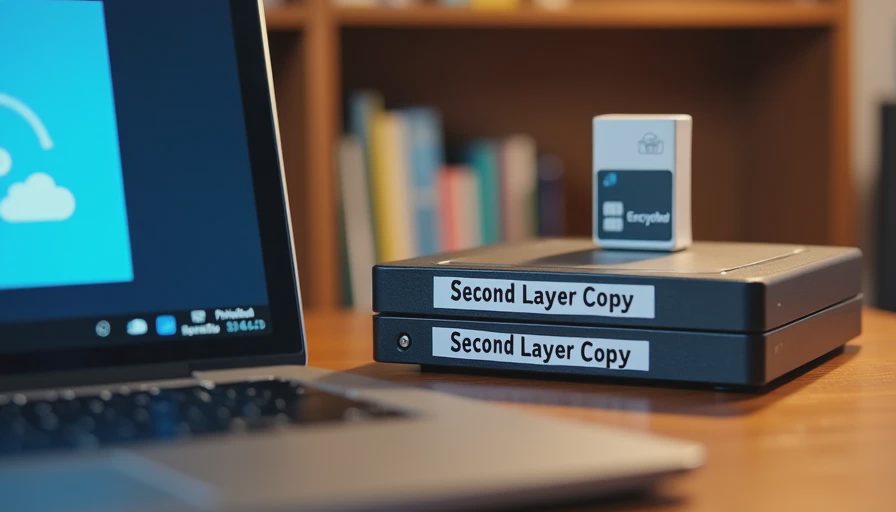
Layer 2: A Second, Separate Copy of the Critical Data
The primary backup is not enough. Phones get lost, accounts get locked, and cloud services can become temporarily inaccessible.
Maintain at least one additional copy of the photo library and the documents folder in a different location or under a different account. Common workable options:
A large external drive that receives a regular (weekly or monthly) copy of the photo library and documents
A second cloud service used only for the critical folders
A NAS or shared family drive if the household already has one and keeps it updated
The second copy does not need to be real-time. It needs to exist and be reachable if the first copy is not.
Layer 3: An Offline or Offsite Safety Copy (Optional but Valuable)
For the irreplaceable photo archive and the most important documents, an occasional offline copy stored somewhere other than the primary residence adds real resilience. This can be as simple as an encrypted external drive kept at a trusted relative’s house or in a safe deposit box, updated once or twice a year.
Many families skip this layer and still do fine. Families with decades of unique photos or complex document histories often find the extra step worthwhile.
Photos: The Highest-Stakes Category
Family photos are the files most often lost and the hardest to recreate.
Practical Photo Backup Rules
Turn on automatic backup on every phone that takes pictures. Verify it is working by checking the cloud library after a week of normal use.
Decide on one primary photo library (the cloud service or a designated computer) and treat other copies as secondary.
Avoid letting years of photos live only on a single phone or a single computer with no backup.
When a phone is replaced, confirm that the old photo history has fully migrated before wiping the device.
Periodically download or copy the full library to the second-layer storage so that a cloud-account problem does not become a total loss.
If the household already uses a shared family photo album or library feature, make sure every adult knows how to access it and that the storage plan is large enough to avoid silent failures.
Documents: Small Volume, High Importance
Documents occupy far less space than photos but often matter more in a practical emergency.
A Workable Document System
Keep a single “Family Documents” folder (or a small set of clearly named folders) on the computer that is already being backed up.
Store scanned copies of key papers there: identity documents, insurance, tax returns, property records, medical summaries, and school records.
Use consistent naming so that anyone in the household can find what they need.
Encrypt the folder or the drive if the documents include sensitive identity information, and store the decryption method in the password manager.
Make sure the second-layer backup also includes this folder.
Paper originals still have a place, but the digital copies are what make the One-Day Disaster Test passable.
The One-Day Disaster Test
Once or twice a year, run a simple mental (or actual) drill:
Assume that tomorrow one of the following happens:
A phone is lost or destroyed
A laptop dies and the drive is unreadable
The primary cloud account is temporarily locked
Then ask:
Can we get the last two years of family photos back within a day?
Can we access the critical documents (insurance, identity, financial) within a day?
Does more than one adult know how to perform the recovery?
If the answer to any of these is no, the system has a gap. Fix the specific gap rather than redesigning everything.
The test is deliberately modest. It does not require proving that every file ever created is recoverable. It requires proving that the loss of one device or one account does not erase the household’s visual history or its essential paperwork.
Common Failure Patterns to Avoid
Relying on a single phone as the photo archive. Phones are lost, broken, and upgraded. They are not archives.
Assuming cloud backup is working without verification. Many devices show a checkmark while quietly failing to upload new items because of storage limits or account issues.
Backing up only the computer and forgetting the phones. In most families the phones now hold the original photos.
Creating a complex system that requires weekly manual steps. Systems that demand constant attention eventually stop receiving it.
Leaving recovery knowledge in one person’s head. If only one adult understands how to restore the files, the household is still one absence away from failure.
A Minimal System That Passes the Test
For most families the following is sufficient:
Automatic photo and device backup enabled on every phone and computer.
One additional copy of the photo library and the Family Documents folder stored on a separate drive or second cloud service.
A short written note (in the password manager or a known household location) that lists where the backups live and how to access them.
A once-a-year One-Day Disaster Test to confirm the pieces still work.
This system is not perfect. It is maintainable. And it protects the files that would actually matter if something went wrong.
Backups exist to make ordinary life more resilient, not to create a second technical hobby. Keep the scope narrow, the automation high, and the recovery path clear enough that any responsible adult in the house can follow it under stress.
Before you add another backup tool or service, make sure the system you already have is one the household can live with—and restore from—when the unexpected day arrives.


No letters yet — be the first guest to write.